If your goal is to find matching rows in two Excel spreadsheets, xlCompare offers a fast and simple solution that takes only a few seconds.
For example, you may have two employee lists and need to find the people who appear in both. Or you may need to synchronize two product catalogs by removing newly added or deleted items. These are common tasks because Excel is frequently used to store and exchange tabular data.
In our example, the task is to find matching entries in two lists of laptops. Each table contains an SKU field that uniquely identifies a product.
In your case, it could be a customer list where the key field is a full name, or a combination of fields such as first name and last name.
Drag and Drop Two Files onto This Page
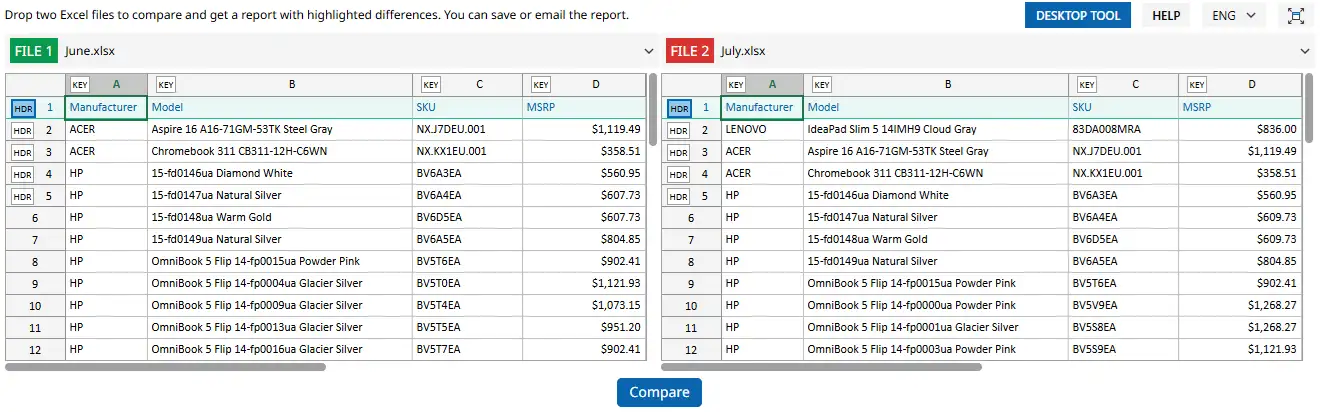
To get started, drag and drop two files from File Explorer onto this page. Place one file in the left panel and the other in the right panel.
You can also paste data directly into the tables using the clipboard. This option is especially useful if your spreadsheets are stored in Google Sheets or use a format other than XLSX or CSV.
In our example, it looks like this:
Specify the Header Row and Key Column
You can skip this step if your table does not contain a header row. However, it is important to get accurate results. The header row gives xlCompare the field names from your table, while the key column tells the application which field should be used to match rows between the two tables.
How to Select the Header Row
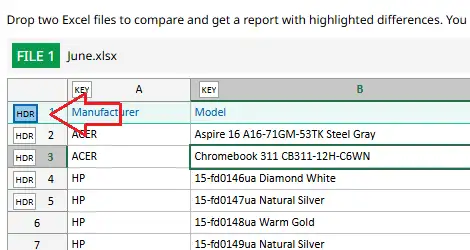
Click the HDR marker next to the row number. The selected row will be highlighted in blue.
In our example, the first row in each table is the header row.
What if there is no header row? Simply skip this step - it will not affect the comparison result.
How to Specify the Key Column
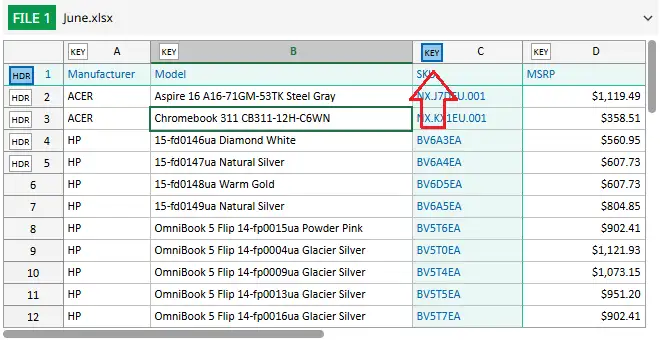
Click the KEY marker in the column header. The selected column will be highlighted in blue.
In our example, we use the SKU column as the key field. This field uniquely identifies each row in the table.
In more advanced cases, the key can consist of multiple fields, such as first name and last name.
What if you are not sure which field to use as the key? Just skip this step. In that case, xlCompare will use a different algorithm to find differences between the tables.
Compare the Two Tables
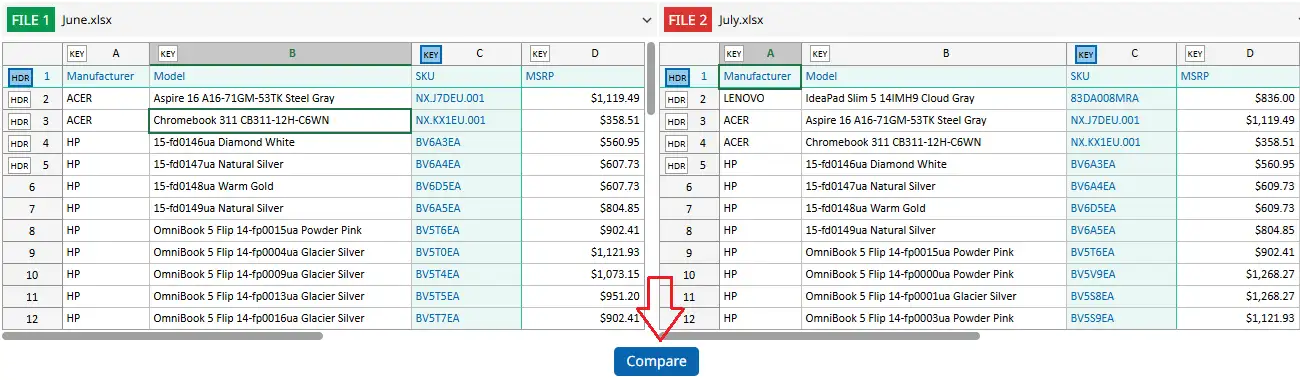
Click the Compare button located below the two tables to run the comparison and instantly see the results on the screen.
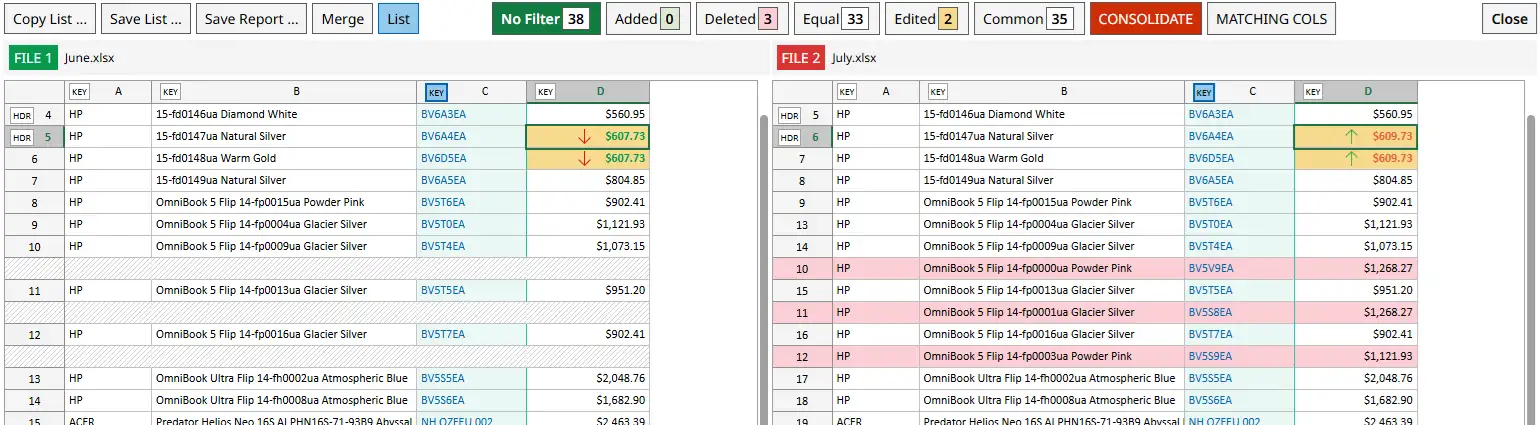
All differences between the two tables will be highlighted with colors for easy review.
Result is the following:
Get a List of Common Rows
Above the comparison report, you will see the Legend, which displays the number of matching and different rows.

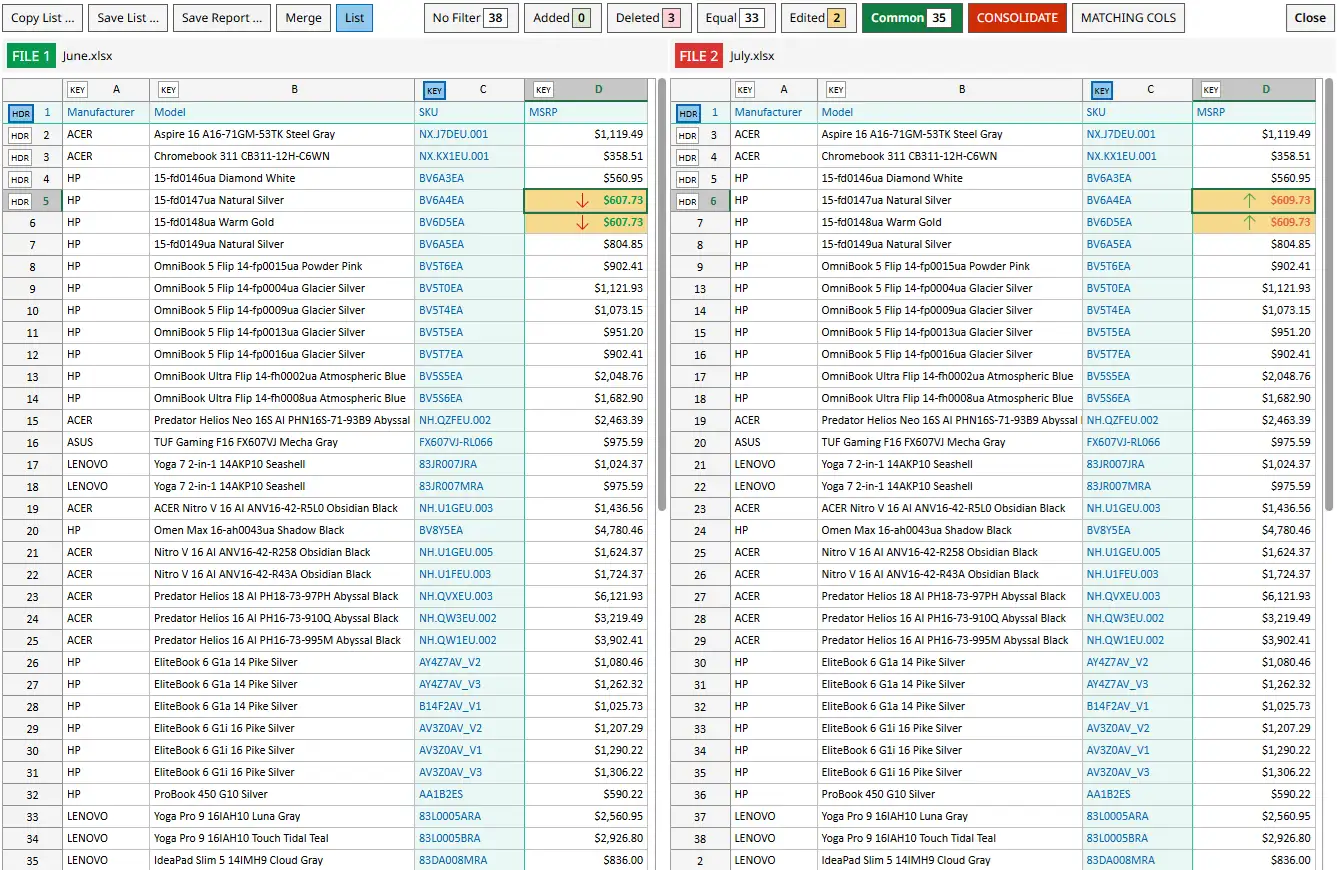
Select Common, and xlCompare will display only the rows whose SKU exists in both lists.
That's exactly what we need.
What's the Difference Between Common and Equal?
The Equal option displays only completely identical rows.
The Common option, on the other hand, displays both identical rows and rows where some cells have changed. It doesn't matter how many differences exist within the row - what matters is that a corresponding row exists in the other table.
Save the Resulting List
The online version of xlCompare does not save files directly to your disk. Instead, it allows you to copy the resulting table and paste it into a new Excel file or Google Sheets document.
This is a simple and familiar way to transfer data between spreadsheets - even for beginners.
Right-click anywhere inside one of the tables.
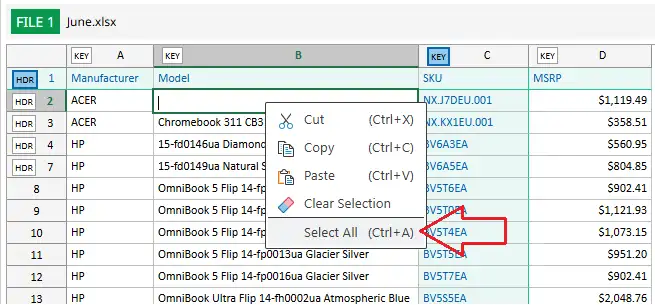
Click Select All in the context menu.
Right-click again and select Copy.
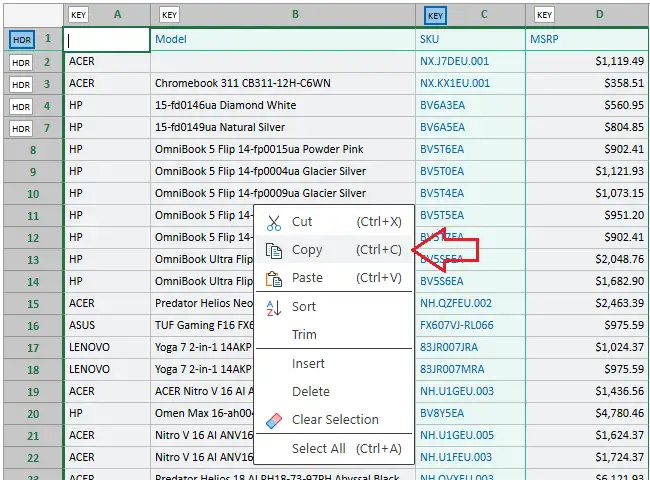
Done! The selected data is now stored in your clipboard.
You can now paste it directly into Microsoft Excel or Google Sheets.
You can also use keyboard shortcuts instead of the context menu:
- Ctrl+A - Select All
- Ctrl+C - Copy
Conclusion
As you can see, the entire task can be completed in just a few clicks.
Even if you are highly experienced with Excel formulas, functions, and advanced features, getting the result with 5–6 mouse clicks is faster and easier.


 Paste
Paste Dedup
Dedup Del Empty
 Sort
Sort Trim
Trim Copy
Copy