Review and Export Differences in Excel Files
All Differences in a Single List
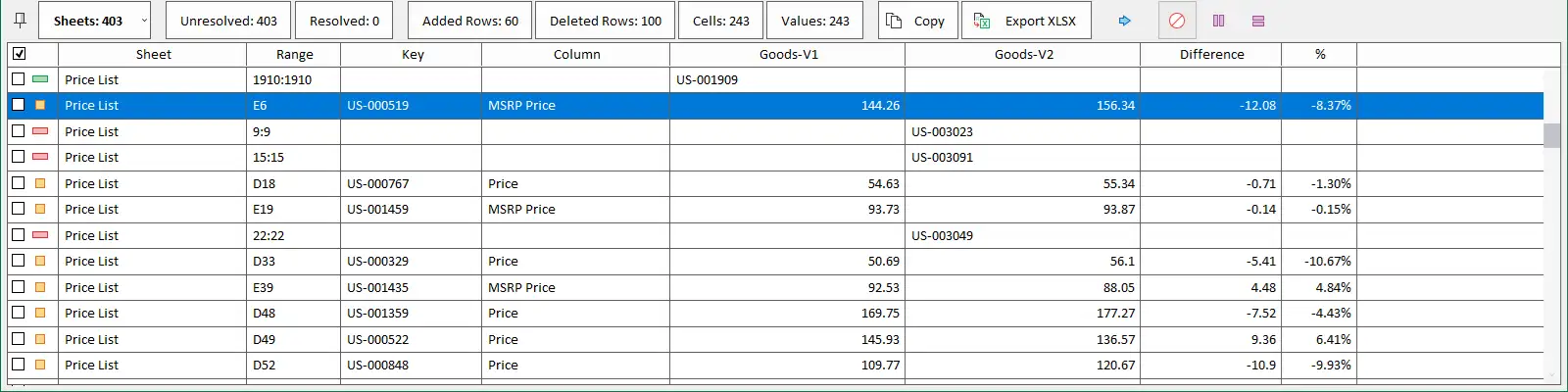
The bottom panel displays a list of all differences found between the two files. Above the list, the Legend lets you filter changes by type - such as changed values, formulas, or added rows - and group them by column or row.
Review Changes One by One
Select any item in the list, and xlCompare will automatically navigate to the corresponding cell in the worksheet. You can also move between differences using the commands in the Navigator menu or the Ctrl+6 and Ctrl+7 keyboard shortcuts.

Extract Matching and Changed Records
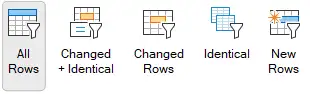
The xlCompare main menu includes filtering commands that let you display only changed rows, completely identical rows, or newly added records.
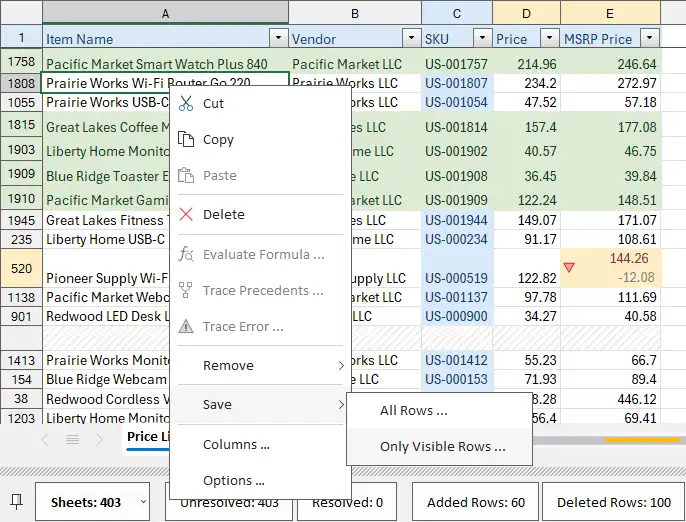
To extract the filtered records into a new file, right-click the table and select Save | Only Visible Rows from the context menu.
Export Report
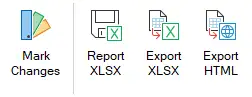
xlCompare provides several options for saving your comparison results. The Report XLSX command in the main menu saves a comparison report containing all detected changes to disk.
The Export XLSX command saves the selected worksheet as an Excel file with all differences highlighted by color.