Compare Excel Sheets by Key Columns
Tables containing database-style records - such as price lists, transaction records, customer data, accounting statements, and other structured lists - require a different comparison algorithm.
A best-match algorithm does not work well for this type of data. Two entries in a price list either have the same product name or they do not - similarity is not enough. Two different product names must be treated as two different records in the table.
For this type of data, use key-column comparison. By specifying one or more key columns in xlCompare, you define how corresponding rows should be matched between the two tables.
For example, if SKU is the key column, rows with the same SKU will be treated as matching records, while rows with different SKUs will be treated as different records.
For the most accurate results, use key-column comparison whenever your tables contain fields that can uniquely identify corresponding records.
Composite Keys (Multiple Identification Columns)
xlCompare natively supports Composite Keys (using two or more columns together as a single identifier). For example, if you have a staff roster, "John" or "Smith" alone isn't unique. You can select both the "First Name" and "Last Name" columns as keys. xlCompare combines these columns into a composite key to identify the corresponding row in the other sheet.
How to Choose Key Columns on the Sheet
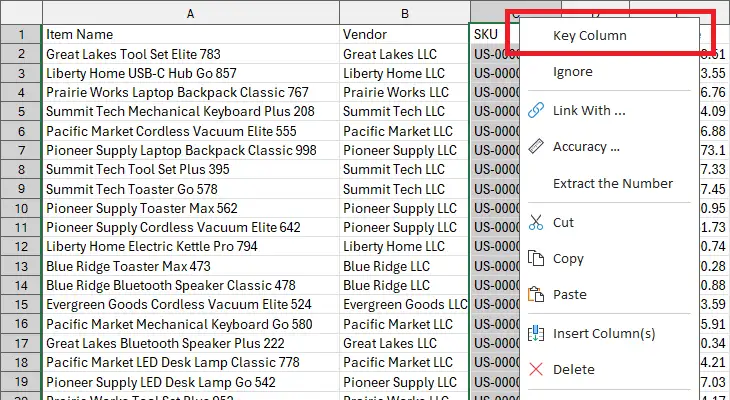
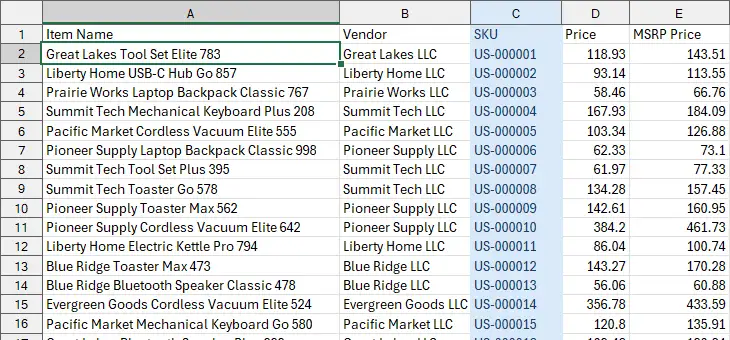
Key Customization Rules
xlCompare lets you categorize columns into three distinct types simultaneously: Primary Key (for row alignment), Standard (important data to compare), and Ignored (data like timestamps that should be ignored during comparison).
xlCompare treats columns as a relational database, making it easier to map mismatched columns on the fly.
How to Specify Header Rows on the Sheet
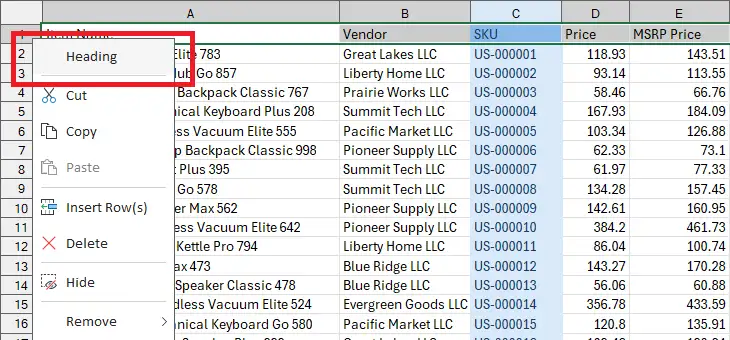
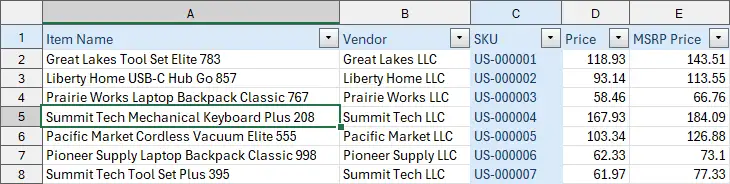
Do I Need to Specify a Header Row?
If your table has a header row, we recommend specifying it. This tells xlCompare that the row contains the field names for your data.
xlCompare can then correctly match corresponding columns even if they appear in a different order in the left and right tables. This is especially useful when comparing data exported from different sources.
Comparison Results
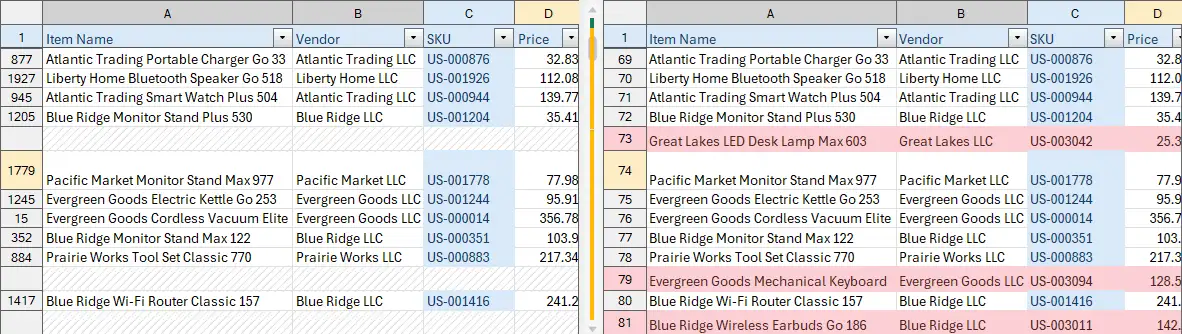
In this example, the rows appear in a different order in the left and right files. For instance, row 1779 in the left file corresponds to row 74 in the right file.
Because key columns have been specified, xlCompare can correctly match and align the corresponding rows in both files. For structured tables, key-based matching provides more predictable results because corresponding records are identified by their unique fields rather than by their position or similarity.
If your data looks like this, specify the columns that uniquely identify each record. xlCompare will use these key columns to correctly match corresponding rows between the two tables, regardless of their position.
Can I Do This Directly in Excel?
You can achieve a similar result using Excel's built-in functions, such as VSTACK, FILTER, UNIQUE, and SORT, to extract, combine, and organize your data.
However, building a complete comparison workflow this way requires a good understanding of Excel's advanced features and can take considerable time to set up. If you need an accurate comparison right away, xlCompare provides a much faster and more straightforward solution.